


Hassle free, 2-Year Warranty
Fast, Free Shipping on Orders $35+
Lifetime Technical Support
30-Day Money Back Guarantee
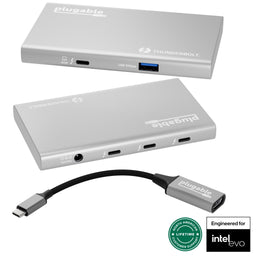
Plugable 5-in-1 Thunderbolt 4 and USB4 Hub
$169.99 USD
SKU: USB4-HUB3AAmazon Rating : (404 Reviews)
Features
- Thunderbolt 4 and More— The Plugable Thunderbolt 4 and USB4 Hub is the only device of its kind to be certified as Engineered for EVO by Intel. Built on the Intel Goshen Ridge Chipset for maximum USB-C, USB4, and Thunderbolt 4 functionality and compatibility
- Powerful Ports— This Thunderbolt hub adapts to your laptop by providing USB-C ports that can function as Thunderbolt 4 / 3, USB4, or USB-C. Supports up to 2x 4K screens, 40Gbps of data bandwidth, and up to 15W power. One USB-C to HDMI video adapter included
- Compatibility— Thunderbolt 4 and USB4 systems, including Apple M1, M2, M3 , M4, M5 (Pro or Max, 11+), and Windows PCs (10+). Thunderbolt 4 dock supports up to 2x 4K screens at 60Hz, one 8K screen or 1x 6K on Apple silicon Macs. Thunderbolt 3 Windows systems and MacBook Neo not recommended
- Expandable— 3x Thunderbolt 4 Ports ideal for high resolution Thunderbolt or USB-C displays & high speed NVME SSD storage devices to make room for all of your gear, or use as a standalone USB-C charging hub. Also provides one 10Gbps USB-A port for legacy devices
- 2-Year Coverage, Lifetime Support— Every Plugable product, including this USB hub, is covered against defects for 2 years and comes with lifetime support. If you ever have questions, contact our North American-based team - even before purchase
For volume orders or business inquiries contact sales@plugable.com
Free 3-Day Continental U.S. Shipping When Buying Direct!


Plugable Thunderbolt 4 & USB4 Hub: 60W Charging, Auto-Adapts to Your PC
Experience the full power of Thunderbolt 4 and USB4 with the Plugable Thunderbolt 4 and USB4 Hub (USB4-HUB3A) with 60W Host Charging. The USB4-HUB3A is among a select group number of devices to be designated as Engineered for EVO by Intel, and stands out for its complement of features packed into a sleek design, including up to 60W charging for the host laptop, 3x Thunderbolt 4 / USB4 ports—each capable of up to 40Gbps of bandwidth, and up to 15W charging for your connected peripherals. And, despite the hub’s compact size, there is also a 10Gbps USB-A port for a legacy USB device. Drive dual 4K monitors or a single 8K monitor with Thunderbolt 4. Take advantage of the included USB-C to HDMI adapter for a convenient HDMI connection right out of the box.


A: Yes, the USB4-HUB3A can provide up to 60W of power to charge the host computer
A: Thunderbolt 4, Thunderbolt 5, Thunderbolt 3, and USB Type-C devices are compatible with the USB4-HUB3A. For example, external storage devices such as Thunderbolt SSDs as well as USB-C video devices or USB-C video adapters.
A: When connected to a host computer with Thunderbolt 4, you can connect up to two displays to the USB4-HUB3A
A: We include one Plugable USB-C to HDMI video adapter in the box with the USB4-HUB3A
A: No, the included external power adapter must be connected to the USB4-HUB3A in order for the device to function.
 |
 |
 |
 |
|
|---|---|---|---|---|
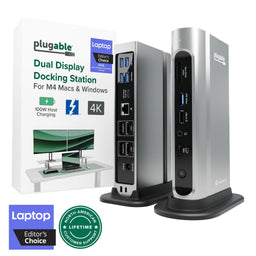
Laptop Compatibility |
Thunderbolt 4, USB4, USB-C, and more |
Thunderbolt 4, USB4, USB-C, and more |
Thunderbolt 4, USB4, USB-C |
Thunderbolt 4, USB4, USB-C, and more* |
Product Type |
Thunderbolt 4/USB4 Hub |
Pure USB-C Hub Design |
Full Feature Docking Station |
USB-C Hub |
Power Delivery to host |
T60W to host, 15W per device |
T60W to host, 15W per device |
100W (98W Certified) |
87W pass-through charging |
Number of displays supported |
2x 4K or 1x 8K + USB-C HDMI |
2x 4K or 1x 8K + USB-C HDMI |
4x 4K 60Hz: 2 HDMI, 2 DP |
1x 4K 30Hz |
Video output types |
3x USB4 Ports + HDMI Adapter |
3x Thunderbolt ports + HDMI |
2x DisplayPort and 2x HDMI |
1x HDMI |
Downstream Thunderbolt 4 ports |
3 |
3 |
0 |
0 |
USB 3.0 ports |
1 |
0 |
5 |
3 |
Included USB-C to HDMI Adapter |
X |
X |
Filter Help Articles and Frequent Questions by Category
Choose one or more filters within each category to narrow down the articles. Each selection will result in only displaying articles that include all of your choices.
Articles
Well how about that, it looks like we don't have any articles matching your filters! Try removing one of your choices or clear the filters to show all articles.
You can always contact support if you need help too!
USB Port Types
USB-A

pietz, CC BY-SA 3.0 , via Wikimedia Commons
This is the standard USB connection that most computers offered prior to the introduction of USB Type-C (USB-C). Even after the introduction of USB Type-C, this is still quite common.
It can provide data transfer rates up to the USB 3.1 Gen 2 (10 gbps) specification depending on the host and device, but does not directly support video in the way that USB-C Alternate Mode does. This limitation makes DisplayLink USB graphics adapters and docking stations ideal on systems that do not have USB-C, or in instances where more displays are needed beyond available video outputs of a PC.
USB-B

Fred the Oyster, CC BY-SA 4.0 , via Wikimedia Commons


IngenieroLoco, CC BY-SA 4.0, via Wikimedia Commons
This type of connection comes in a couple different styles depending on whether USB 3.0 and higher transfer rates are supported (bottom graphic). Usually this type of connection is used to plug into USB devices that do not have a fixed cable connected, such as USB docking stations, USB hubs, printers, and others.
USB Mini-B
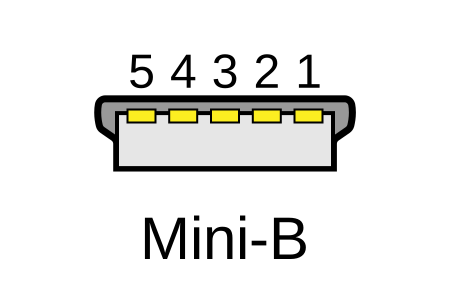
Fred the Oyster, CC BY-SA 4.0 , via Wikimedia Commons
One of the first connectors for charging a smartphone, wireless game controller (such as the Sixaxis and DualShock 3), and other small devices such as external hard drives. Not commonly used today, but is still used in some cases. Most devices using USB Mini B are using USB 2.0, though a USB 3.0 variant does exist. This specification also added USB On-The-Go (OTG) functionality, though it is more commonly implemented with Micro USB.
USB Micro-B

Fred the Oyster, CC BY-SA 4.0, via Wikimedia Commons
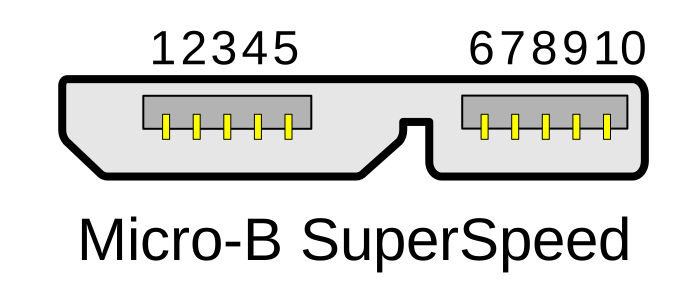
IngenieroLoco, CC BY-SA 4.0 , via Wikimedia Commons

A smaller connector that serves many of the same uses as the Mini B connector, with added optional features such as Mobile High-Definition Link (MHL) to allow devices like smartphones to output video to larger displays without requiring a dedicated port for video output.
The larger variant of USB-B is most commonly used for external hard drives for higher 5Gbps transfer rates.
USB-C, Thunderbolt™ 3, and Thunderbolt™ 4
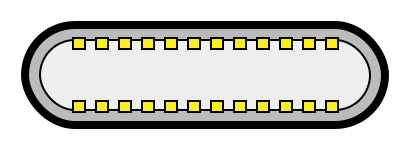
Niridya , CC0, via Wikimedia Commons
The most recent USB connection, USB Type-C (USB-C), represents a major change in what USB can do. The connector is smaller, can be connected in two orientations, is able to carry substantially more power and data, and can directly carry video signals of multiple types (HDMI, DisplayPort, etc.) Intel has also adapted the USB-C connector for use with Thunderbolt 3 and Thunderbolt 4.
It is important to note that while all Thunderbolt 3 and Thunderbolt 4 connections are USB-C, not all USB-C connections can be used with Thunderbolt 3 or Thunderbolt 4 devices.
More details regarding physical USB connections can be found on Wikipedia . The graphics depicted here are adapted from Wikimedia Commons by various artists under the Creative Commons Attribution-Share Alike 3.0 Unported license.
Self-Powered vs Bus-Powered USB Devices
What Is the Difference Between Self-Powered and Bus-Powered USB Devices?
Self-powered USB device - A device that takes all of its power from an external power supply
Bus-powered USB device - A device that takes all of its power from the host computer's USB interface.
Why High-Current Devices Require External Power
While all USB ports provide some amount of power for attached devices, the available power may not be enough for certain high-current devices such as USB hubs or external hard drives. Bus-powered devices can cause issues if they need more power than is available from the host machine, as each additional device attached to the host computer reduces the total available bus power. If the power runs out, any USB device attached to the computer may suddenly disconnect, which could result in permanent data loss for a USB storage device.
How to Use Devices with Included Power Adapters
Many devices that include power adapters, especially USB hubs, will function in either self-powered or bus-powered mode. If a device comes with a power adapter, it should stay connected at all times, otherwise the device may not function as designed.
Applicable To
USBC-11IN1E, USBC-10IN1E, USBC-9IN1E, USBC-7IN1E, USBC-7IN1, AD-6IN1, USBC-4IN1, USB3-HUB4A, USBC-HUB4A, AMS-5IN1E, USB4-HUB3A, TBT4-HUB3C, USBC-HUB7BC, USB3-HUB7C, USB3-HUB3ME
Can I Use a Thunderbolt 4 Cable to Connect to a Thunderbolt or USB-C Device Such as a Phone, iPad, or Docking Stations?
Yes, this Thunderbolt 4 cable is compatible with any USB-C port for data transfer, charging, or video (capabilities will depend on peripheral used).
Applicable To:
Thunderbolt 4 Cables
Do Thunderbolt 4 Cables Support USB-C Power Delivery for Host Charging?
Yes, Thunderbolt 4 cables can support up to 240W of power allowing you to keep your devices charged, but some cables may not offer the full 240W capability and instead offer a maximum of 100W of Power Delivery.
Are Thunderbolt 4 Cables Compatible With Thunderbolt 3 Computers and Devices?
Yes, Thunderbolt 4 cables are backward compatible with Thunderbolt 3 and USB-C devices.
Applicable To:
Thunderbolt 4 Cables
Does the USB4-HUB3A Hub Charge the Host PC?
The USB4-HUB3A hub can provide up to 60W of power to charge the host PC, provided that the PC supports being charged via Thunderbolt or USB-C.
Please note - not all Thunderbolt 3, Thunderbolt 4, or USB-C systems can be charged via their Thunderbolt or USB-C ports. Please consult your PC’s manual or technical specifications in order to determine if your PC supports charging via Thunderbolt or USB-C.
What Are the Capabilities of the USB4-HUB3A Hub Ports, and What Types of Devices Can Be Connected?
You can then connect many different types of Thunderbolt and USB-C devices to the three ‘downstream’ Thunderbolt/USB-C ports on the back of the hub. The type of functionality provided by the three ports on the back of the hub is ultimately determined by the capabilities of the host computer.
To put that another way, if the host computer has Thunderbolt 4 technology built-in, then all three ports on the back of the hub will function as Thunderbolt 4 ports.
If the host PC has USB-C technology built-in, then all three ports on the back of the hub will function as USB-C ports.
If the host PC has Thunderbolt 3 technology built-in, then all three ports on the back of the hub will function as Thunderbolt 3 ports ***
*** Please note, the specifications of a Thunderbolt 3 host system can have an impact on the level of functionality of the hubs’s downstream ports ***
When a Thunderbolt 3 host system that has:
A. An Intel Titan Ridge Thunderbolt host controller
B. A DCH variant of the Thunderbolt host controller driver higher than version 1.41.613.1 installed
C. An internal Thunderbolt NVM firmware version of 41 or higher
Is connected to the hub, then all of the downstream ports will function as Thunderbolt 3 ports.
When a Thunderbolt 3 host system that has:
A. An Intel Alpine Ridge Thunderbolt host controller
B. A DCH variant of the Thunderbolt host controller driver installed
Is connected to the hub, then one downstream port will function as a Thunderbolt 3 port, and the other remaining ports will function as a USB Type-C port.
Devices that use a USB 3.0/3.1/3.2 Type-A connection can be connected to the USB 3.2 Type-A port located on the front of the hub.
Can I Use My Display With a Native USB-C Video Input With the USB4-HUB3A Hub?
External displays that have a native USB-C video input can be used in conjunction with the Plugable USB4-HUB3A hub.
However, in our experience helping others we have found that some portable USB-C displays may not work as expected when an external USB-C power source is connected to the display.
If your portable USB-C display has an external USB-C power source, please disconnect the external power source from the display when using the display in conjunction with the hub.
The hub can provide up to 15W of power to the portable USB-C display, which will take the place of the external power source.
An example of such a display would be the ViewSonic VG1655 display → https://www.viewsonic.com/us/vg1655.html
A video that demonstrates the capabilities of this display is here → https://youtu.be/ferq4xz_A3M
What Amount of Power Can the USB4-HUB3A Hub Provide to Connected Devices?
What amount of power can the USB4-HUB3A hub provide to connected devices?
Each of the three ports on the back of the hub have the ability to provide up to 15W of power to connected devices, and this is typically used to power an external device (such as a Thunderbolt or USB-C storage drive).
However, this power can also be used to charge devices that have an internal battery, for example a mobile phone or a tablet.
An additional useful component of this feature is that the charging capability can be used even when the hub is not connected to your PC.
To put that another way, when your PC is not connected to the hub, the hub can be used as a charging station for up to three different devices.
The USB 3.2 Type-A port on the front of the hub can provide up to 5V 900mA of power to connected devices. The USB 3.2 Type-A does not support any other device charging standards (such as BC 1.2)
Do I Need To Install Any Drivers To Use the USB4-HUB3A Hub? Does the Hub Need To Be ‘Approved’ in Windows?
Speaking in general, there are no driver installations necessary in order to use the hub in macOS or Windows.
If the PC you are connecting the hub to is running Windows and has Thunderbolt 4 or Thunderbolt 3 technology built-in, when you first connect the hub you may be prompted to ‘Approve’ or ‘Authenticate’ the device via the Intel Thunderbolt software that should already be installed on your Windows PC.
We have a video that demonstrates how to ‘Approve’ the device using the two different types of the Intel software (known as either the ‘Intel Thunderbolt Software’ or the ‘Intel Thunderbolt Control Center’) here → https://youtu.be/aRN2aEzmsyo
Depending on how your Windows PC is configured, the Approval process may happen automatically and as a result you may not be prompted to Approve the hub.
** Note - we have had reports that the hub needed to be manually Approved when used with some Windows Thunderbolt 3 systems before USB devices connected to the hub would function properly. If USB devices are not working properly via the hub, please check the Approval status and manually Approve if necessary. Please note that the USB4-HUB3A is officially supported in conjunction with Windows PCs that have Thunderbolt 4 technology built-in. **
If the PC you are connecting the hub to is running macOS and has Thunderbolt 3 or USB4 technology built-in, the approval process will happen automatically.
If the PC you are connecting the hub to has USB-C technology built-in, the hub does not need to be approved (device Approval is not part of the USB-C standard).
Can I Connect External Displays to the USB4-HUB3A? What Are the Hub’s Display Capabilities?
Included in the box with the hub is one Plugable USB-C to HDMI video adapter. You can connect this adapter to the hub in order to attach one HDMI display (up to 3840x2160 resolution at a 60Hz refresh rate) to the hub using a HDMI to HDMI video cable (a cable with a HDMI connector on both ends, not included).
Please note that the amount of displays that can be connected to the hub is ultimately determined by the capabilities of the host PC.
A PC that has Thunderbolt 4 technology will be capable of driving two displays via the hub. This is because the Thunderbolt 4 specification requires a single Thunderbolt 4 port to be capable of driving two displays.
A PC that has Thunderbolt 3 technology will be capable of driving one or two displays via the hub. This is because manufacturers have a choice when designing a Thunderbolt 3 system in regard to how many displays can be driven via a single Thunderbolt 3 port. Some Thunderbolt 3 PCs can support two displays, while other Thunderbolt 3 PCs can support only one display. ** Please note that the USB4-HUB3A is officially supported only in conjunction with Windows PCs that have Thunderbolt 4 technology built-in. **
A PC that has USB-C technology will be capable of driving only one display via the hub.
Please note that not all USB-C systems are capable of providing video output over USB-C. Please consult your PC’s manual or technical specifications in order to determine if your USB-C PC is capable of providing video output.
What Kind of Devices Can Be Connected to the USB4-HUB3A Hub?
It is possible to connect many different types of Thunderbolt and USB-C devices to the three ports on the back of the hub. You can also connect a variety of USB Type-A devices to the USB 3.2 Type-A port located on the front of the hub.
Devices that are Thunderbolt 4, Thunderbolt 3 or USB-C can connect directly to the hub using Thunderbolt 4, Thunderbolt 3, and USB-C cables, respectively. Examples of some of these various types of devices are:
Storage drives
- Thunderbolt 3 storage drives (INSERT LINK)
- USB-C storage drives (INSERT LINK)
USB-C video adapters
- USBC-HDMI (INSERT LINK)
- USBC-TDP (INSERT LINK)
- USBC-DVI
- USBC-VGA
USB 3.0 Type-C hubs
- USBC-HUB7BC
Devices that use a USB 3.0/3.1/3.2 Type-A connection can be connected to the USB 3.2 Type-A port located on the front of the hub.
Virtually any type of USB 3.0/3.1/3.2 Type-A device can be connected to the hub's USB Type-A port. Examples of some of these various types of devices are:
DisplayLink USB docking stations
- UD-3900Z
- UD-6950Z
Can the Plugable USB4-HUB3A Hub Be Used Without Connecting the Included Power Adapter? In Other Words, Can It Be ‘Bus Powered’ From the Host System’s Thunderbolt 4 Port?
The USB4-HUB3A requires that the included power adapter be connected to the hub in order for the hub to function properly. The hub will not work if the included power adapter is not connected.
The hub cannot be ‘bus powered’ from the host system’s Thunderbolt 4 port.
I Have Connected the Plugable USB4-HUB3A to My Windows PC With Thunderbolt 3. Video Output via the Included USB-C to HDMI Adapter Is Working, However USB Devices Connected to the Hub Are Not. Why Is This?
Please note that the USB4-HUB3A is officially supported in conjunction with Windows PCs that have Thunderbolt 4 technology built-in.
While the hub can work with some Thunderbolt 3 Windows PCs, the level of functionality of the hub when used with a Thunderbolt 3 Windows PC cannot be guaranteed.
That said, we have had reports that the hub needed to be manually Approved within the Intel Thunderbolt application when used with some Windows Thunderbolt 3 systems before USB devices connected to the hub would function properly.
If USB devices are not working properly via the hub, please check the Approval status and manually Approve if necessary.
We have a video that demonstrates how to ‘Approve’ the device using the two different types of the Intel software (known as either the ‘Intel Thunderbolt Software’ or the ‘Intel Thunderbolt Control Center’) here → https://youtu.be/aRN2aEzmsyo
Docking Station Power Adapters
Below is a list of power adapter models used by Plugable docking stations. We offer refurbished replacement power adapters on eBay as they are available for purchase, however, we may not have replacement power adapters available for all of our docking stations.
If the power adapter for your docking station or region is not listed, out of stock on eBay or if you have any other questions regarding replacement power adapters for our docks please contact us at support@plugable.com and we will be happy to assist further.
We offer a 30-day return period for our replacement power adapters listed on eBay.
| Dock Models | Power Supply Model Number | Replacement Power Supply (if available) |
|---|---|---|
| USB 3.0 / USB-C Docking Stations | ||
| UD-3900 UD-3000 UD-5900 UD-PRO8 UD-3900C |
DSA-24PFS-05 |
|
| UD-3900H | P120W2000U |
|
| UD-3900PDZ - 100W (purchased from March 2025) | A18-135P1B |
|
| UD-3900Z | ADS-26SGP-12 12024E |
|
| UD-6950 | A16-045N3A |
Contact support@plugable.com |
| UD-6950H | P200W2000UG |
Contact support@plugable.com |
| UD-6950Z | ADS-40SGP-19 20040G |
|
| UD-CA1 UD-CA1A |
EA10953D-200 |
Contact support@plugable.com |
| UD-ULTCDL (MK1 original and MK2 updated version) Note: Check here to determine what version of dock you have |
A16-065N2A (MK1 model) A18-135P1B-Rev3 (MK2 model) Note: MK2 model adapters will work with MK1 docks |
|
| UD-ULTC4K (MK1 original and MK2 updated version) Note: Check here to determine what version of dock you have |
A16-100P1A (MK1 model) A18-135P1B-Rev3 (MK2 model) Note: MK2 model adapters will work with MK1 docks |
|
| UD-3900C4 |
A18-135P1B-Rev3 |
North America plug |
| UD-3900PDH UD-3900PDZ - 60W alternative power adapter |
PS200D06500G1 |
North America plug |
| UD-768PDZ |
PA-1131-72 v2 |
North America plug |
| UD-6950PDZ - 100W (purchased from February 2025) |
A18-135P1B |
North America plug |
| UD-MSTH2 |
ADS-110DL-19-1 200110E |
North America plug |
| UD-MSTHDC |
ADS-110DL-19-1 200110E |
North America plug |
| UD-CAM |
A16-100P1A |
Contact support@plugable.com |
| UD-CUBE |
EA1024CR-050 |
Contact support@plugable.com |
| UD-6950PDH |
PS200D06500G1 (v1 of dock*) F-J-SW202720006700 (v2 of dock with serial numbers 4157 or newer*) *For more details about v1 and v2 UD-6950PDH docks visit our Knowledge Base article |
North America plug (v1) North America plug (v2) |
| Thunderbolt / USB4 Docking Stations | ||
| TBT4-UDZ |
PA-1131-72 v2 |
North America plug |
| TBT3-UDC1 | PA-1131-72 v1 |
|
| TBT3-UDV | A18-135P1B-Rev1 |
Contact support@plugable.com |
| TBT3-UDZ | PA-1171-72 |
Contact support@plugable.com |
| TBT3-UDC3 | PA-1171-72 |
Contact support@plugable.com |
| TBT4-HUB3C | ADS-110DL-19-1 200110E |
|
| USB4-HUB3A |
ADS-110DL-19-1-200100E |
North America plug |
| TBT4-UD5 & TBT-UDM | FJ-SW202721006400 |
North America plug |
| TBT4-UDX1 | A18-135P1B-Rev4 A18-135P1B-Rev3 (Large Barrel) |
North America plug |
| TBT-6950PD | YW180A2-2100858 |
North America plug |
| UD-4VPD |
PA-1171-72 |
Contact support@plugable.com |
Do Plugable products support the Apple SuperDrive?
No, Plugable products do not support the Apple SuperDrive.
Why do Plugable products not support the Apple SuperDrive?
The Apple SuperDrive has stringent power requirements that can only be met by directly connecting the SuperDrive directly to the host computer. As a result at this time Apple recommends only using their USB-C adapter cables. Apple provides more information on this topic here → How to connect the Apple USB SuperDrive
Applicable To
- All Plugable brand products
What is USB PD Pass-Through?
USB Power Delivery (USB PD) pass-through allows a compatible USB-C hub or dock to receive power from an external USB-C charger and supply some of that power to a connected computer. The hub or dock reserves power for its own operation, so the computer may receive less than the charger's rated output.
How Pass-Through Power Works
The charger connects to the hub or dock's designated PD input, and the hub or dock connects to a computer that supports charging through its USB-C port. The devices negotiate a supported power level. How much reaches the computer depends on the charger, cable, hub or dock, computer, and connected devices.
Example
The Plugable USBC-6950PDZ accepts up to 100W from a compatible USB-C charger and can provide up to 82W to the connected computer. These are two different ratings. A lower-wattage charger leaves less power available for the dock and computer to share.
Important Notes
- A 100W PD input rating does not mean the computer receives 100W. Check the maximum host charging output for the specific product.
- If the computer requires more power than the setup can provide, charging may be slow or the battery may discharge under heavy use.
- USB PD specifications allow up to 240W with compatible equipment. That is a specification maximum, not a capability shared by every USB-C product.
Need Assistance?
If you are unsure how much power a Plugable product can supply to your computer, contact support@plugable.com with the Plugable model, computer model, and charger wattage.
Can I Leave My Notebook Computer Connected to a Charging Dock Overnight, or Should I Discharge and Recharge the Notebook Battery Regularly?
Yes. Modern notebook computers can safely remain connected to a charging dock for extended periods without damaging the battery or requiring regular discharge and recharge cycles. Leaving the laptop connected is functionally equivalent to leaving it connected to the manufacturer's original power adapter.
Why Modern Laptops Do Not Require Battery Cycling
Lithium-ion (Li-ion) batteries are used in a wide range of consumer electronics, including notebook computers, cell phones, electric vehicles, power tools, and wireless earbuds. They offer fast charging, high-current discharge, a relatively long service life, and a comparatively low cost.
The lifespan of a rechargeable battery depends on factors such as age, temperature history, charging patterns, chemical composition, and usage. For example, batteries stored at 100% charge generally degrade faster than those stored at around 50%, which is why many consumer electronics arrive with a partial charge.
Although Li-ion batteries are consumable components, they’re typically not user-serviceable in modern computers, phones, and tablets. These devices include built-in charging and protection circuits that prevent overcharging and monitor factors such as battery temperature, voltage, current draw, and overall health. Charging systems can range from simple preset charging rates to advanced software-controlled management designed to balance charging speed with battery longevity.
Modern notebook computers can remain connected to their original power adapter or a compatible docking station for extended periods and don’t benefit from regular discharge and recharge cycles. Plugable docking stations with charging capability use USB Type-C Power Delivery, a negotiated protocol that allows the computer to request only the power and voltage it requires. Together with the computer’s built-in battery management system, this helps maintain the battery appropriately while connected to power. Disconnecting power simply forces the laptop to operate from its battery, which may trigger reduced-power modes that can affect system performance and connected devices.
Legacy Laptop Battery Behavior
Older laptops from the 1990s and early 2000s, some consumer electronics, and many rechargeable AA and AAA batteries used Nickel-Cadmium (NiCad) or Nickel-Metal Hydride (NiMH) technology. These batteries generally charged and discharged more slowly than lithium-ion batteries and used relatively simple charge controllers. Some could also be trickle-charged using a continuous, very low current.
Because these older batteries often lacked smart charging controllers, manufacturers sometimes recommended “training” them by fully charging and discharging the battery periodically, including two or three full cycles when a laptop was new. Modern lithium-ion batteries don’t have this requirement and don’t benefit from periodic manual discharging.
Applicable To
Plugable docking stations with USB Power Delivery (PD)
Can I Use a USB-C to Barrel Adapter to Power My USB4-HUB3A?
In general, we only recommend using the included power adapters with all of our products, as it minimizes the risk of damaging the docks or hubs. However, with GaN chargers delivering higher wattages over USB-C in a more compact package, many people are wanting to use these chargers to power their hubs, as they tend to be more compact than the included charger.
We have gone ahead and done some limited testing with a 100W power delivery source and a 100W USB-C to barrel adapter to see if this is possible. Note that we tested here with a USB4-HUB3A, as the power supply it comes with has a maximum rating of 100W as well.
Below is a diagram of the setup that we used with our USB4-HUB3A:
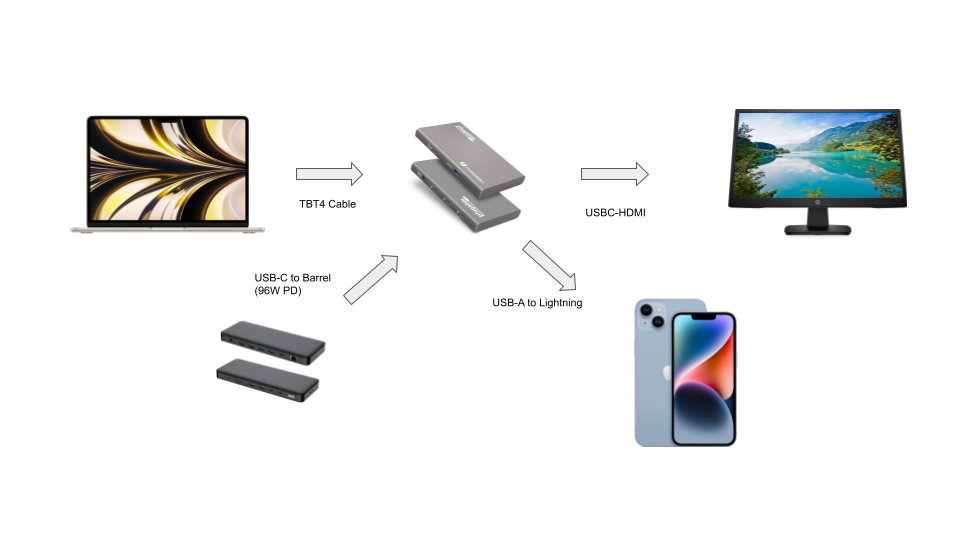
We used our USBC-VAMETER3 to measure wattage outputs at the 100W PD supply as well as the host connection from the hub to the host.
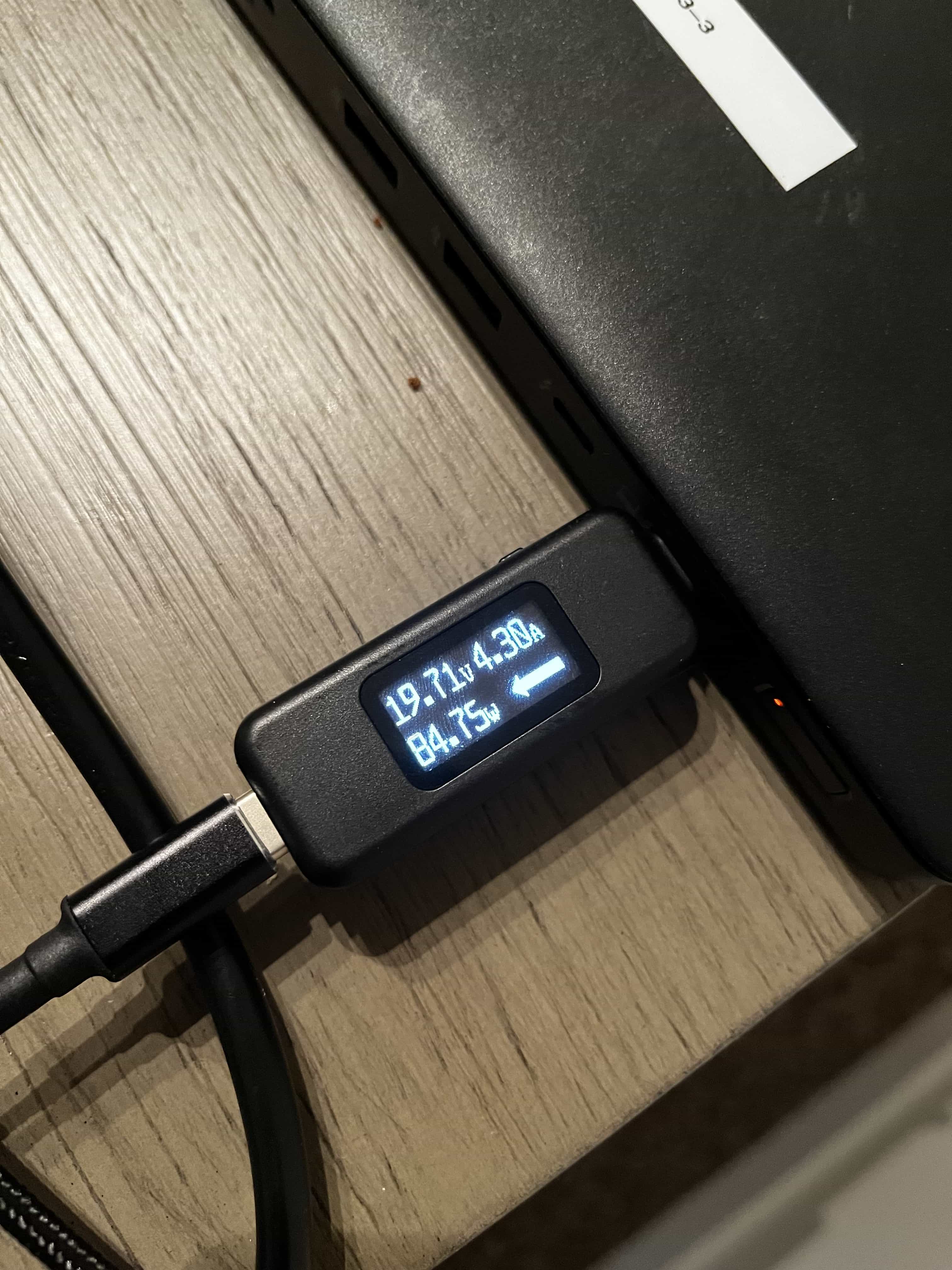
Below is the connection from the 100W PD power supply to the USB4-HUB3A through the USB-C to barrel connector with all peripherals connected to the hub:
Below is the connection from the USB4-HUB3A to the host (M2 MacBook Air):
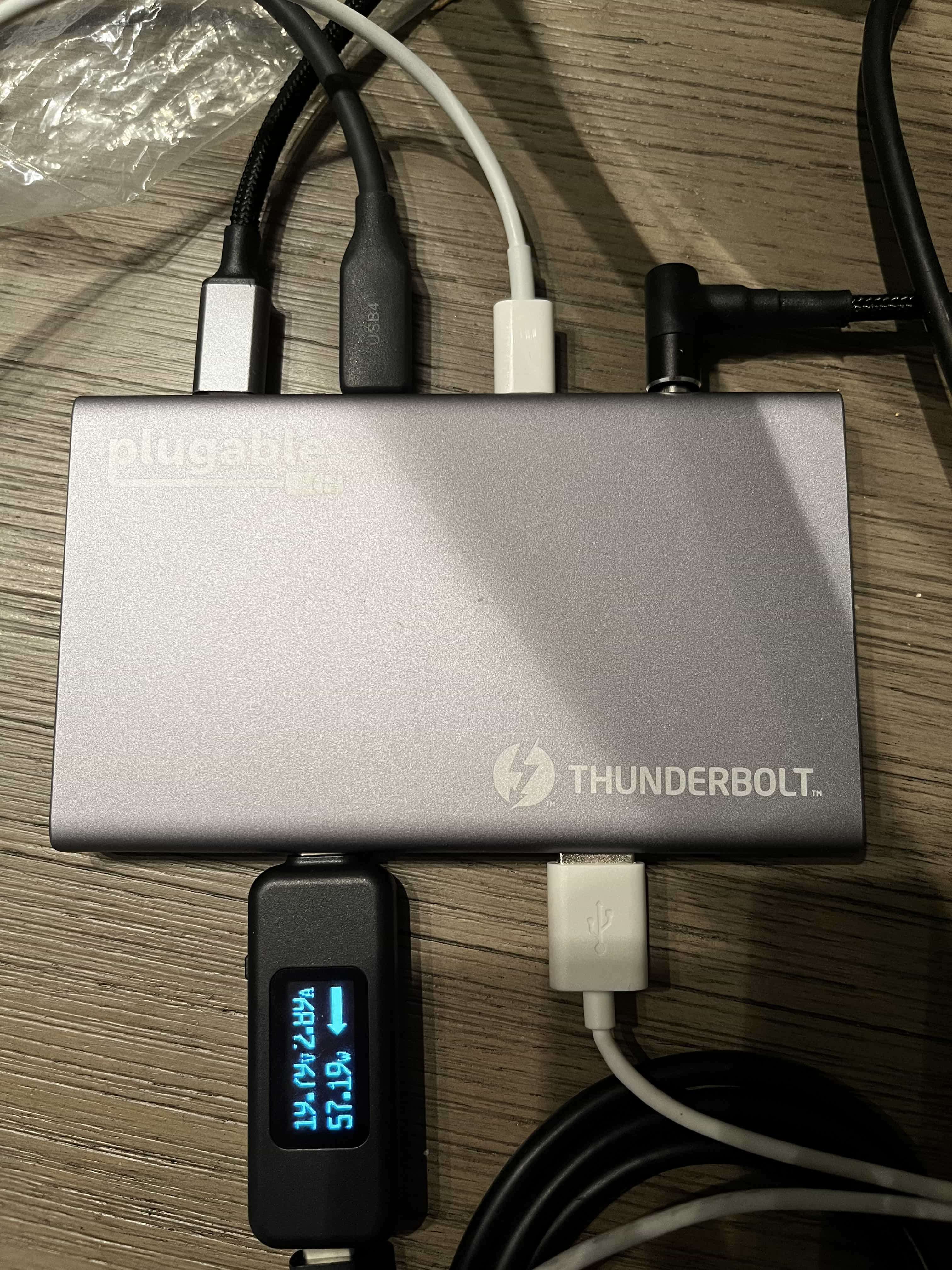
With our limited testing, the hub was able to function and output to a display as well as charge both the host MacBook and a phone, all while being powered by a USB-C PD power supply. It even seems that there was a little bit of headroom for the power supply to supply a little bit more power if needed.
While the testing shows a proof of concept, it is still not recommended to connect any other power supply besides the included one that comes with your hub or dock, as there is a serious chance that you can damage the device and it would not be covered by our warranty.
Which USB-C port on this product can be used to connect it to my computer?
For products which have multiple USB-C ports, normally only one port is capable of connecting the product to a computer. USB-C ports capable of connecting the product to a computer are sometimes called “Host” or “Upstream” ports.
On Plugable products with multiple USB-C ports, the dedicated port for connecting to the computer will be marked with a small laptop icon or the words “To host”.
A product may not be able to function if it is connected to a computer through a different USB-C port. These ports are also known as “Hub" or “Downstream” ports.
Why Do Plugable Electronics Generate Heat During Operation?
Yes, heat generation is a normal byproduct of operation for electronic devices and Plugable products as electrical energy is consumed and transferred. Power delivery, high-speed data transfers, and active peripheral usage naturally convert electrical energy into thermal energy. Plugable designs its products with thermal safety margins to ensure operational temperatures remain within safe limits.
Why Plugable Electronics Generate Heat
Electrical components generate heat as current flows through them, with higher power usage-such as charging host laptops or conducting fast data transfers-increasing thermal output. Many Plugable products, such as the TBT3-UDZ and TBT4-UDZ docking stations, feature aluminum enclosures engineered with internal thermal pads to function as heat sinks. This design transfers internal heat outward to radiate into the room. This protects internal components, however can cause the external surface to feel warm or hot. Higher ambient room temperatures, direct sunlight, and obstructions to air currents around the device may also contribute to increased surface heat. While Underwriters Laboratories (UL) sets a thermal safety threshold of 77°C (170.6°F), Plugable targets a lower operational ceiling of approximately 71°C (160°F) under the heaviest of loads.
How to Manage Heat Generation in Plugable Products
To keep operating temperatures as low as possible, ensure Plugable devices have sufficient ventilation around them and are not placed in enclosed spaces. Avoid connecting an excessive number of power-hungry USB accessories that exceed the power limits of your dock or hub, as higher power draw causes the unit to run warmer (for example USB fans, heaters, cup warmers etc). Expect temporary increases in surface temperature during intensive workloads such as simultaneous multi-device charging and high-bandwidth data transfer.
Conclusion
Experiencing heat from Plugable products is a normal aspect of the operation of high-performance devices. Users can rest assured that we prioritize the safety and efficiency of our devices. By understanding the factors influencing heat generation and following simple usage guidelines, users can make the most of their Plugable products while ensuring a reliable and efficient user experience.
Applicable To
- Plugable docking stations, including TBT3-UDZ and TBT4-UDZ models
- Plugable USB hubs, video adapters, and electronic accessories
- Electronic devices utilizing metal heat-dissipating enclosures
If you have any questions please feel free to contact us at support@plugable.com and we'll be happy to help!
Will 60W Be Enough to Charge My Laptop?
For most business and consumer laptops and typical workloads, 60W is enough to keep the laptop powered and charging. A laptop designed for a higher-wattage power adapter can usually still operate with a 60W USB-C power source, but charging may be slower or the battery may gradually discharge during demanding workloads.
Why Is 60W Enough for Most Laptops?
A laptop's included power adapter is generally designed to support the system's maximum charging and power requirements. Common laptop power adapters may provide 45W, 60W, 65W, 100W, 140W, or more.
However, modern laptops dynamically manage their power consumption and typically use only a portion of their maximum available power during everyday workloads. The required power changes based on factors such as processor and graphics usage, connected devices, battery level, and charging state.
Laptops also reduce their charging rate as the battery approaches a full charge. As a result, the difference between a 60W charger and a higher-wattage charger may become less noticeable during a typical workday when the laptop remains connected to power for long periods.
Even during demanding tasks such as video editing, rendering, or other high-performance workloads, a laptop may exceed 60W only for short periods. If the computer requires more power than the dock or charger can provide, you may notice that:
- The battery charges more slowly
- Charging temporarily stops
- The battery slowly discharges while connected
- The laptop reduces performance to match the available power
This does not necessarily indicate a problem with the dock, charger, or laptop. It can simply mean that the computer is consuming more power than the connected USB-C power source can provide.
Gaming laptops and mobile workstations often have significantly higher power requirements. Systems supplied with 180W or higher power adapters may require their original power adapter for full performance.
Why Might Windows Show a Low-Wattage Warning?
Some Windows laptops, particularly Dell, HP, and Lenovo systems, may display a notification or startup message when connected to a USB-C power source that provides less power than the adapter supplied with the computer.
Messages may indicate that:
- A lower-wattage power adapter or USB-C charging device has been connected, and system performance may be reduced
- The computer is in a weak or slow charging state
- The power adapter wattage or type cannot be determined, and the battery may not charge normally
- The connected adapter provides less power than the manufacturer's recommended adapter
- A higher-power adapter should be connected for full system performance
These warnings do not necessarily mean that the Plugable dock, hub, or charger is malfunctioning. Most business and consumer laptops can continue operating and charging from a lower-wattage USB-C power source, although charging speed and system performance can vary.
Some computers may also offer options in their BIOS or system settings to control low-wattage power notifications. Refer to the computer manufacturer's documentation before changing these settings.
What Should I Do if 60W Is Not Enough?
If your laptop consistently loses battery charge during normal use, charges too slowly for your needs, displays persistent low-power warnings, or reduces performance while connected to a 60W power source, consider using a dock or charger that provides power closer to the wattage recommended by the laptop manufacturer.
For laptops with power requirements higher than the dock can provide, you may still be able to use the Plugable product for displays, USB devices, networking, and other connectivity while connecting the laptop's original power adapter separately.
Check your laptop manufacturer's specifications to confirm its recommended charging wattage and whether the computer supports USB-C Power Delivery.
Applicable To
- TBT4-HUB3C, USB4-HUB3A, UD-MSTHDC, USBC-PS-60W, UD-MSTH2
Is this safe to use if my computer doesn't support USB-C Power Delivery?
Summary
Yes. Connecting a compatible Plugable USB-C docking station or hub that supports Power Delivery (PD) to a computer that does not support USB-C charging is generally safe.
USB-C Power Delivery uses a negotiation process between the dock and the connected computer to determine whether the computer can accept power for charging.
If the computer does not support USB-C PD charging, the dock will not force unsupported higher-voltage charging onto the computer.
You may still be able to use the dock's other features, such as USB data connections, Ethernet, and external displays, provided your computer supports the necessary capabilities.
Applicable To
- Plugable USB-C docking stations with Power Delivery
- Plugable USB-C hubs with Power Delivery passthrough
- Computers with USB-C ports that do not support USB-C PD charging
Note: Available features vary by Plugable product and computer. Check the compatibility requirements for your specific docking station or hub.
How USB-C Power Delivery Works
USB-C Power Delivery is designed to allow compatible devices to negotiate their power requirements before higher-voltage charging is enabled.
When a USB-C dock or hub that supports Power Delivery is connected to a computer:
- The dock communicates its available USB PD power capabilities.
- A compatible computer negotiates the voltage and power level it can accept.
- Power Delivery charging is established only when the connected devices support the required negotiation.
If the computer does not support USB-C Power Delivery charging, the dock will not establish an unsupported higher-voltage charging connection.
USB-C connections can still provide standard 5V power without a USB PD contract. However, this should not be confused with the negotiated higher-power charging used by many laptops.
What Happens If My Computer Doesn't Support USB-C Charging?
If your computer has a compatible USB-C port but cannot charge through that port:
- Laptop charging: The dock will not charge the computer using USB-C PD.
- USB data: Compatible USB peripherals connected to the dock may still function.
- External displays: Video output may still work if the computer supports the display technology required by the dock.
- Ethernet and other peripherals: These features may remain available, depending on the dock's requirements.
In this situation, you will typically need to continue using your computer's original power adapter to charge or power the laptop.
A USB-C connector does not guarantee that a computer supports charging, video output, or every feature of a USB-C docking station.
Keep the following in mind:
- The computer must support the data and video capabilities required by the dock.
- Some docking stations require DisplayPort Alternate Mode, USB4, Thunderbolt, or DisplayLink software for specific functions.
- A computer that does not support USB-C PD charging will generally require a separate power source.
- Use the recommended power adapter and host cable for your Plugable docking station or hub.
USB-C Power Delivery compatibility and overall docking station compatibility are separate considerations. A dock can be safe to connect without necessarily supporting every feature on your computer.
Need Assistance?
If you are unsure whether your computer can safely use a particular Plugable USB-C docking station or hub, please contact Plugable Support at support@plugable.com.
When contacting support, please include:
- Your Plugable product model
- Your computer manufacturer and model
- Whether your computer supports charging through its USB-C port
- The features you intend to use, such as external displays, USB devices, or Ethernet
- Any compatibility concerns or unexpected behavior you have experienced
This information will help our support team verify your setup and determine which docking station features your computer can support.
Can I replace the original power adapter included in the box with my Plugable product with a different, 3rd-party power adapter?
Barrel-Type Power Supplies for Hubs and Docks
Plugable recommends and supports using only the external power adapter originally included in the box with a Plugable product to power the device.
Plugable does NOT normally recommend or support using any type of alternate or 3rd-party power adapters in conjunction with our products that originally included a power adapter in the box.
This is because 3rd-party power adapters may not work as expected, and in some cases can potentially cause damage to the Plugable product if they do not match the specifications of the original power adapter. Counterfeit and incorrectly labeled power supplies are also a concern as these may not meet the specifications on their labels or may have inferior safety features.
Should you require a replacement for an original Plugable provided power adapter, Plugable offers a multitude of power adapters for purchase separately → https://kb.plugable.com/question/1081115
USB Type-C Powered Devices
Please also note, this provision does not apply to Plugable products that rely on a computer's original power supply or recommend using a separate USB Type-C power source.
For example, the PS-10CC → https://plugable.com/products/ps-10cc does not include a power adapter in the box with the product. The intention with the PS-10CC (and other similar products like the USBC-9IN1E → https://plugable.com/products/usbc-9in1e) is to use a USB Type-C power adapter that supports USB Power Delivery that you already have in conjunction with the product most often these are included with a computer and provided by a reputable brand.
This works because USB Power Delivery is an industry standard while barrel-type power adapters are not well standardized. Products that support USB Power Delivery are intended to work with a variety of different USB Type-C power adapters that support the USB Power Delivery standard.
If you have any questions please feel free to contact us at support@plugable.com and we'll be happy to help!
Understanding Power Delivery vs. Pass-Through Power Delivery
Power Delivery (PD) docking stations use their own included power adapter to directly charge your connected laptop while simultaneously powering peripherals. In contrast, Pass-Through Power Delivery hubs do not generate their own power; they require you to plug a separate charger (like your laptop's original power adapter) into the hub, which then passes the power through to your computer.
How Power Delivery (PD) Works
USB Power Delivery (PD) is a fast-charging standard that allows devices to dynamically negotiate power levels to ensure efficient charging. Docking stations with dedicated PD support come with their own AC to DC power adapter, enabling high power transfer directly to laptops, tablets, and smartphones. An example is the Plugable UD-7400PD, which provides its own power to deliver up to 140W of charge to the host while supporting five external displays.
How Pass-Through Power Delivery Works
A hub with pass-through charging relies entirely on an external USB-C power adapter (such as your laptop's original USB-C PD charger) being plugged directly into it. The hub allocates a portion of this incoming power (typically around 7.5W to 15W) to run its own functionality (like data transfer and peripheral connections) and sends the remaining power to the connected laptop. Because of this operating requirement, the total wattage reaching the laptop will be slightly reduced compared to plugging the charger directly into the computer. Examples include the Plugable USBC-9IN1E (up to 140W pass-through) and the USBC-4IN1 (up to 100W pass-through).
How to Choose the Right Option
If you need an all-in-one docking station that can directly charge your laptop without needing extra cables, look for one with dedicated Power Delivery support. If your laptop already has a high-wattage charger and you want to maintain power while expanding connectivity (often ideal for portable setups), a pass-through PD hub may be a better choice. If you have any questions or would like a recommendation for your specific setup, feel free to reach out to our support team at support@plugable.com.
Applicable To
USB-C and Thunderbolt docking stations or hubs with PD
USB-C vs. Thunderbolt: Understanding the Differences
While USB-C and Thunderbolt share the same physical rounded rectangle connector they operate in fundamentally different ways.
The Main Differences Aren't Physical
USB 3 at 5Gbps and 10Gbps with Type-C - often simplified to USB-C - is both the hardware connector standard, and the included data types: USB 5Gbps or 10Gbps data rates, as well as optionally DisplayPort Alternate Mode video and USB Power Delivery for powering and charging both host computers, and downstream devices.
Thunderbolt, specifically Thunderbolt 3 and newer and USB4 use the same physical USB Type-C port, and support a backwards compatibility with USB-C devices, however the signaling and data structure is completely different. Both Thunderbolt and USB4 operate at between four to sixteen times the speed of USB 3. While USB offers optional display and charging, these are mandatory for Thunderbolt hosts. The way display data is transmitted is also different.
DisplayPort Alternate Mode for USB 3 occupies two or four of the physical data lanes in the USB Type-C connector and cable. Tunneled DisplayPort video in Thunderbolt (and USB4) packetizes the DisplayPort video data and transmits it within Thunderbolt/USB4 data packets. Tunneled DisplayPort allows for more native DisplayPort streams enabling multiple external displays at higher resolutions and refresh rates.
Power Delivery is the USB Type-C (as in the port) charging and power standard - this allows a power source and device to negotiate a voltage and maximum amperage both devices can support. For example a phone might negotiate a 9V 3A charge rate which is close to optimal for a phone size battery, while a notebook computer is more likely to negotiate 20V 5A both for improved battery charging and to power the system under moderate to heavy workloads.
Why USB-C and Thunderbolt Capabilities Differ
USB Type-C is a connector standard where features such as video output (DisplayPort Alt Mode) and USB Power Delivery (PD) are optional and depend on the host device manufacturer. In contrast, Thunderbolt sets mandatory performance and hardware requirements across data, video, and power protocols.
- USB 3.0 / 3.1 Gen 1: Up to 5Gbps data transfer speed.
- USB 3.2 Gen 2: Up to 10Gbps data transfer speed.
- USB 3.2 Gen 2x2: Up to 20Gbps data transfer speed. This is very rarely implemented and most computers do not support it.
- Thunderbolt 3: Up to 40Gbps data transfer speed, supports dual DisplayPort 1.2 enabling two 4K or a single 5K displays, USB, DisplayPort, PCIe over a single cable, and up to 100W Power Delivery.
- USB4: Up to 40Gbps data transfer speed, supports DisplayPort 1.4 either one or two external displays, PCIe, and optional Thunderbolt 3 compatibility, USB 3.2 Gen 2 10Gbps, and Power Delivery.
- Thunderbolt 4: Up to 40Gbps data transfer speed, supports dual 4K or single 8K displays, USB4 compatibility, USB 3.2 Gen 2 10Gbps, and Power Delivery.
- Thunderbolt 5: Up to 80Gbps bi-directional bandwidth (DisplayPort up to 120Gbps using Bandwidth Boost), supports dual 6K or single high-refresh-rate 8K displays, PCIe, and backward compatibility with Thunderbolt 4 and USB4, USB 3.2 Gen 2 10Gbps.
Effectively each tier from this list supports all of the features of the tier above as well as some new features. Thunderbolt 4 is Intel's implementation of USB4 with all optional features enabled.
How to Identify Ports and Ensure Compatibility
- Port Identification: Thunderbolt ports are usually marked with a lightning bolt symbol with a downward pointing triangle at the bottom point, this should be next to the port, while USB-C ports may be unmarked or feature symbols indicating power delivery (a simple lightning bolt is common) or DisplayPort capabilities ("DP" logo is often used). Always refer to device technical specifications for confirmation.
- Connecting Thunderbolt Devices to USB-C Ports: Thunderbolt 3, 4, or 5 devices connected to standard USB-C ports typically operate at reduced capabilities, such as lower speeds or fewer display outputs.
- Connecting USB-C Devices to Thunderbolt Ports: USB-C devices connected to Thunderbolt ports function normally, but cannot take advantage of full Thunderbolt features.
Applicable To
- Plugable docking stations, hubs, and video adapters
- USB-C standards (USB 3.0, 3.1 Gen 1, 3.2 Gen 2, 3.2 Gen 2x2, USB4)
- Thunderbolt standards (Thunderbolt 3, Thunderbolt 4, Thunderbolt 5)
If you have any questions please feel free to contact us at support@plugable.com and we'll be happy to help!
What are the external display capabilities of Apple Mac laptops with an Apple M4 processor as compared to the previous M3, M2 and M1 generations?
Apple divides their M-Series processors into numerical generations: M1, M2, M3 etc., each generation has offered three variations, a 'base' model (without a suffix) and 'Pro' and 'Max' models.
Mac laptops based on Apple CPUs have varying native external display capabilities via Thunderbolt/USB-C connections and/or HDMI.
Each generation offers different capabilities depending upon which generation and variation of Apple processor is in use.
Typical Host Ports
Apple MacBook Air and Pro 13-inch systems typically only include two USB Type-C ports, with some later models also including a HDMI output.
Typically a USB Type-C port can support a single USB Type-C external display, or up to two displays via Thunderbolt 4+ connections. The system can either output two or four lanes (one stream) of DisplayPort data - on the four USB SuperSpeed connections - for USB Type-C connected displays and USB Type-C docking stations. Alternatively, USB4 and Thunderbolt 4+ docking stations and graphics adapters support DisplayPort tunneling, this allows the system to packetize and transmit multiple DisplayPort video streams from a single port. Historically this has been used to enable up to two external displays from a single port, however M5 Pro & Max processors can enable up to three or four streams respectively.
Apple 14-inch and larger systems generally include a HDMI output and either two or three USB Type-C ports. Depending on the model a direct HDMI connection may be required to enable one of the system's supported displays.
The MacBook Neo includes two USB Type-C ports, however one only supports USB 2.0 and charging. This limited function port does not support video output and should display an incompatible accessory message if a display or display capable adapter is connected to this port.
Apple M1 & M2
Apple Mac laptops with base M1 and M2 processors natively support one external display connected via USB Type-C.
Apple Mac laptops with M1 Pro and M2 Pro processors natively support up to two external displays.
Apple Mac laptops with M1 Max and M2 Max processors can support up to four external displays in total using the integrated HDMI and USB Type-C ports.
Apple M3
Apple Mac laptops with base M3 processors can support one external display when the laptop lid is open and the laptop's internal display is enabled. They can support up to two external displays when the laptop lid is closed and the laptop's internal display is disabled.
Apple Mac laptops with M3 Pro can support up to two external displays via USB Type-C or USB Type-C and HDMI in addition the built-in display.
Apple Mac laptops with M3 Pro or M3 Max processors can support up to four external displays in total, regardless of the state of the laptop lid.
Apple M4
Apple Mac laptops with a base M4 processor or M4 Pro processor can support up to two external displays regardless of the state of the laptop lid.
Apple Mac laptops with a M4 Max processor can support up to a total of four external displays regardless of the state of the laptop lid.
Apple M5
Apple Mac laptops with the M5 base model processor may enable up to two external displays in addition to the built-in display.
Apple Mac laptops with M5 Pro may enable up to three external displays.
Apple Mac laptops with M5 Max may enable up to four external displays. Additionally with compatible graphics adapters or docking stations the M5 Max can support up to four external displays from a single USB Type-C port.
If you have any questions please feel free to contact us at support@plugable.com and we'll be happy to help!
Do I need to approve or authenticate Thunderbolt devices when I connect them to my Windows or Mac computer?
For most modern Windows and Mac systems, Thunderbolt devices are automatically approved and will ‘just work’ once connected. Apple Mac laptops with Apple CPUs running macOS Ventura (13) or newer, will prompt you to manually approve the device the first time you connect it.
The summary table below provides the specific details at a glance, and the text that follows explains the table in more detail.
Thunderbolt Approval / Authentication Summary Table
| Platform | CPU Type | OS Version | Approval Needed? |
|---|---|---|---|
| Windows 11 | Intel CPU (Thunderbolt 4 or 5 host) | Windows 11 version 21H2 or newer | No - automatically approved |
| macOS (Laptop) | Apple CPU | macOS 13 Ventura or newer | Yes - manual approval required |
| macOS (Desktop) | Apple CPU | macOS 13 Ventura or newer | No - automatically approved |
| macOS (Laptop or Desktop) | Apple CPU | macOS 11 Big Sur, macOS 12 Monterey | No - automatically approved |
| macOS (Laptop or Desktop) | Intel CPU (Thunderbolt 3 host) | macOS 13 Ventura or newer | No - automatically approved |
| Windows 10 / Early Windows 11 versions | Intel CPU (Thunderbolt 3 or 4 host) | Windows 11 versions prior to 21H2 | Sometimes - depends on host system configuration |
Why Authentication Exists
To expand further, Thunderbolt 3, 4 and 5 are in essence external connections to the host computer’s internal PCI Express bus. This type of low-level and high speed connection warranted security protocols to prevent unauthorized access to user data.
Windows: From Intel Software to Native OS Support
When Thunderbolt 3 Windows systems were first introduced in late 2015 it was necessary to use Intel Thunderbolt software to manually authenticate and approve external Thunderbolt devices.
With the introduction of Thunderbolt 4 Windows systems in 2020, it was still necessary to have Intel Thunderbolt software installed on the host computer. However, in most cases the authentication and approval process would happen automatically greatly simplifying the process.
Starting with Windows 11 version 21H2 released in October of 2021, Microsoft integrated support for both USB4 and Thunderbolt into the Windows operating system → Microsoft USB 4 connection manager introduction
This means that with most modern Thunderbolt 4 and Thunderbolt 5 computers running the latest version of Windows 11 it is no longer necessary to install Intel Thunderbolt software on the host computer in order to manage Thunderbolt devices. In most cases, the authentication and approval process will still happen automatically.
macOS: From Intel CPUs to Apple CPUs
When Thunderbolt 3 Mac systems with Intel CPUs were first introduced in 2016, the authentication and approval mechanism was built-in to macOS and was transparent to the end user.
Apple introduced Mac computers based on Apple CPUs in 2020. Macs based on Apple CPUs running macoS 11 Big Sur or macOS 12 Monterey would automatically approve and authenticate Thunderbolt devices when connected.
macOS 13 Ventura was released in 2022 and for portable Macs with Apple CPUs Apple introduced a feature known as ‘Accessory Security’ (also known as ‘Restricted Mode’) → Manage accessory access to Apple devices
By default, portable Macs (i.e. laptops) with an Apple CPU running macOS 13 Ventura or newer version of macOS will require the end user to authenticate and approve a Thunderbolt device when initially connected.
Stationary Macs (i.e. desktops) with an Apple CPU running macOS 13 Ventura or newer version of macOS do NOT implement the ‘Accessory Security’ feature. As a result, Thunderbolt devices will be automatically approved and authenticated when initially connected.
Apple Macs with Intel CPUs (both laptop and desktops) running macOS 13 Ventura or newer do NOT implement the ‘Accessory Security’ feature. As a result, Thunderbolt devices will be automatically approved and authenticated when initially connected.
If you have any questions please feel free to contact us at support@plugable.com and we'll be happy to help!
Why Higher Voltage Power Supplies Are Included with USB 5V Hubs and Docks
Maybe you are looking for a replacement power supply, or maybe you are just curious, but why would a USB hub - which provides 5V to USB devices - would include a power adapter rated at 12V or potentially higher?
Improved Voltage Regulation Under Load
When multiple USB devices are connected - especially high-draw peripherals like external drives or charging phones - the demand on the dock’s internal power can spike. If the power supply were delivering only 5V, any load increase might cause voltage "sag," potentially leading to unstable or unreliable performance.
By starting with a higher voltage like 12V or 20V, the internal voltage regulators within the dock or hub can more reliably and efficiently step down that voltage to a consistent 5V, even under heavy load. It’s similar to having a reservoir or water tower above a village - you’ll have more reliable water pressure regardless of demand.
Greater Power Efficiency Over Distance
Transmitting power at higher voltage and lower current reduces energy loss due to resistance in the wires (which causes heat). By increasing the voltage we can decrease the amperage for the same power, and power loss in the line is directly proportional to amperage squared so even a small decrease in the amperage adds up quickly. Once the power reaches the dock, it's stepped down to the voltages needed for USB ports. This not only enhances efficiency but also makes compact, cooler-running designs possible.
Special Consideration for USB-C Docks
USB-C docks commonly include 20V power supplies, which serve a dual purpose:
- Supplying 5V for downstream USB devices
- Delivering up to 100W (or more) to host laptops via USB-C Power Delivery
With USB Power Delivery 3.1 (EPR), even higher voltages (up to 48V) are supported, enabling future docks and laptops to handle even more powerful devices like desktop replacement laptops or external GPUs.
Will Future Docks Use 48V Power Supplies?
It's likely. While 20V is common now (especially for consumer devices), 24V+ power supplies are widespread in industrial and telecom applications. As high-performance laptops and workstations demand more power, consumer docks may start including 24V, 36V, or even 48V adapters. These would align with USB PD 3.1 specs and simplify designs that support extended power ranges.
However, for now, 12V and 20V remains as sweet spots for cost, availability, and compatibility across a wide range of devices.
In Summary
Higher voltages like 12V or 20V are used for better regulation and more efficient power delivery.
USB-C docks use 20V to support Power Delivery charging host computers or downstream devices (up to 100W).
USB PD 3.1 EPR opens the door to 48V systems, and while uncommon now, future docking stations may shift to 48V as demand grows.
If you have any questions please feel free to contact us at support@plugable.com and we'll be happy to help!
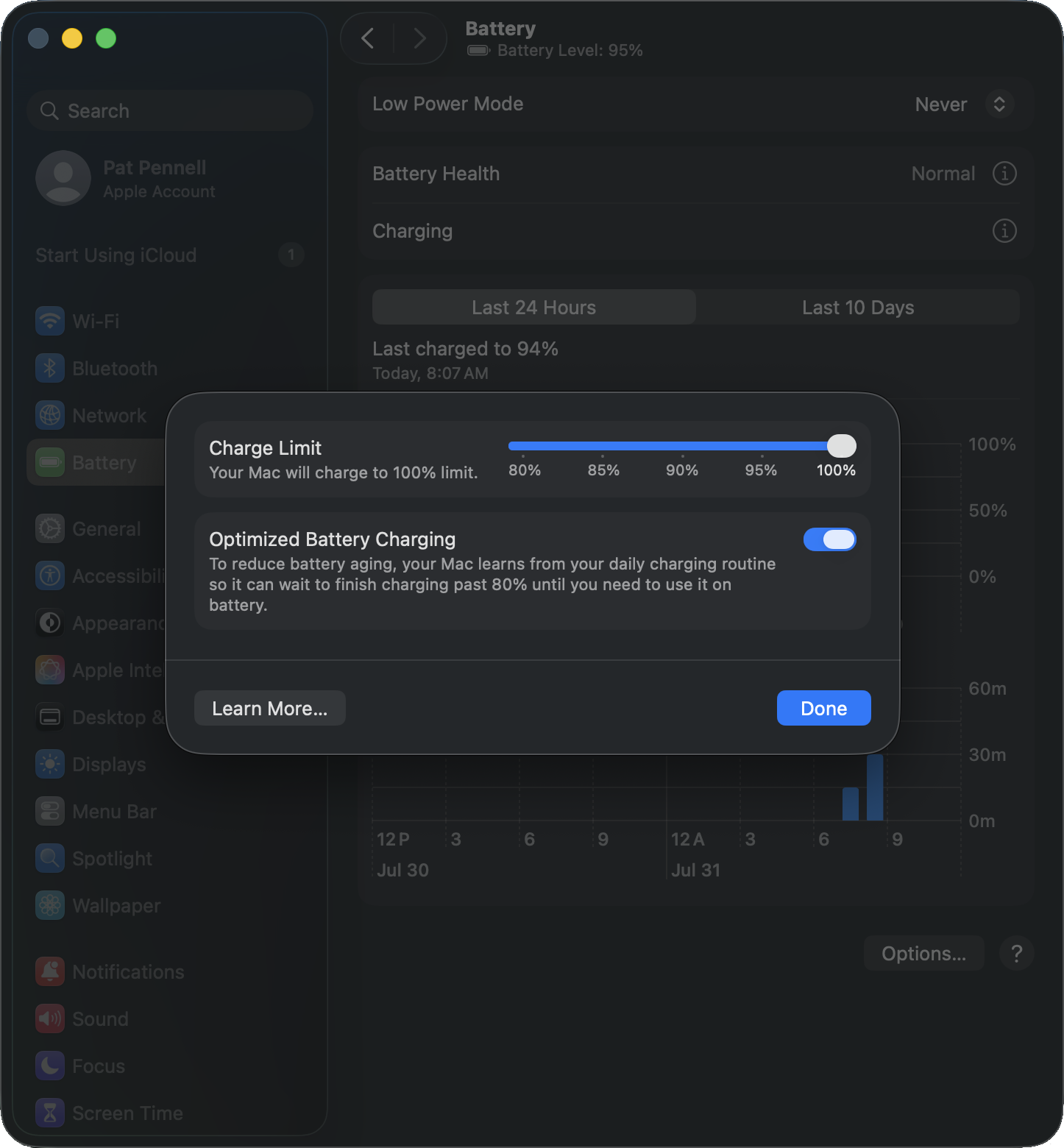
Why does my MacBook battery only charge to 80 percent?
If you routinely discharge your MacBook battery and fully recharge the battery often, macOS may set a battery charge limit to 80% to "reduce battery aging". In most cases this is a good option to have, however if you need the battery to be fully charged this setting can be disabled.
Disable the battery charge limiter
- Select System Settings the Apple menu
- Select Battery from the left column in System Settings
- Select the Info button ("I" inside a circle) on the Charging line near the top of the right panel
- Toggle off the Optimize Battery Charging option
A bit more detail
Time
Lithium-Ion batteries used in modern notebook computers are significantly more reliable and predictable than previous battery technologies, however like all batteries they both degrade over time regardless of use.
All battery technologies will begin to degrade after production, when in storage, or in active use. When storing a Lithium-Ion battery normally it is recommended to partially discharge the battery to help minimize degradation in storage.
Cycles
Battery life spans are often described in discharge/charge cycles, by limiting the top-end charge (often limiting the charge to 80%) system manufacturers seek to reduce the degradation with each charge cycle. One method is to simply over-spec the battery and set the operating system's 100% threshold to 80% of the battery's maximum capacity, this has the added benefit that over time as the battery degrades the charge controller could allocate more of the top-end charge potential to shift the reported 100% capacity maintaining the same power capacity over a longer period of time. Apple doesn't seem to use this approach, instead using the full capacity of the battery and implementing the battery charge limiter to help maintain that full capacity.
Apple macOS has a battery health report in the System Settings > Battery panel there is an info button for Battery Health which shows the Battery Condition and Maximum Capacity.
Our recommendation
We recommend sticking with the system's default battery charge settings, unless you specifically need to charge the battery to 100%.
The default setting helps to maintain the battery lifespan of the system, however could cause reduced work time while on battery. Batteries are no longer a user serviceable component of MacBook or most modern notebook computers, increasing the cost of battery replacement in both time and labor fees compared to older systems where batteries could easily be removed with one or two locking latches/levers.
If you have any questions please feel free to contact us at support@plugable.com and we'll be happy to help!


- Choosing a selection results in a full page refresh.
