Understanding the Multiple Displays on Apple Silicon Macs
Plugable Marketing | March 06, 2026

Building an optimized workstation now requires navigating four distinct tiers of Apple hardware. From the budget-friendly A-series MacBook Neo to the "Fusion Architecture" of the M5 Max, your choice of docking station is the bridge between your laptop and your productivity.
This guide breaks down the three core technologies—DisplayLink, Thunderbolt, and MST—and how they interact with the current Apple lineup.
The Hardware Foundation: Neo to M5 Max
The "Native Display Limit" is a hardware ceiling. While the new M5 Pro and Max chips provide massive bandwidth, the entry-level chips still require specific strategies for multi-monitor support.
| Chip Tier | Key Model(s) | Native Displays | Technical Status |
|---|---|---|---|
| A18 Pro | MacBook Neo | 1 | Budget entry. Requires DisplayLink for dual screens. |
| Base M1 / M2 | Air (13"/15") | 1 | Hardware capped. One native stream only. |
| Base M3 | Air / Pro 14" | 2 (Lid Closed) | Dual support requires Clamshell Mode. |
| Base M4 / M5 | Air / Pro 14" | 2 (Lid Open) | Modern standard. Dual native external support. |
| Pro (M1–M5) | MacBook Pro | 2 | High-fidelity native dual-display streams. |
| Max (M1–M5) | MacBook Pro | 4 | Professional multi-monitor powerhouse. |
DisplayLink: Breaking the Entry-Level Limits
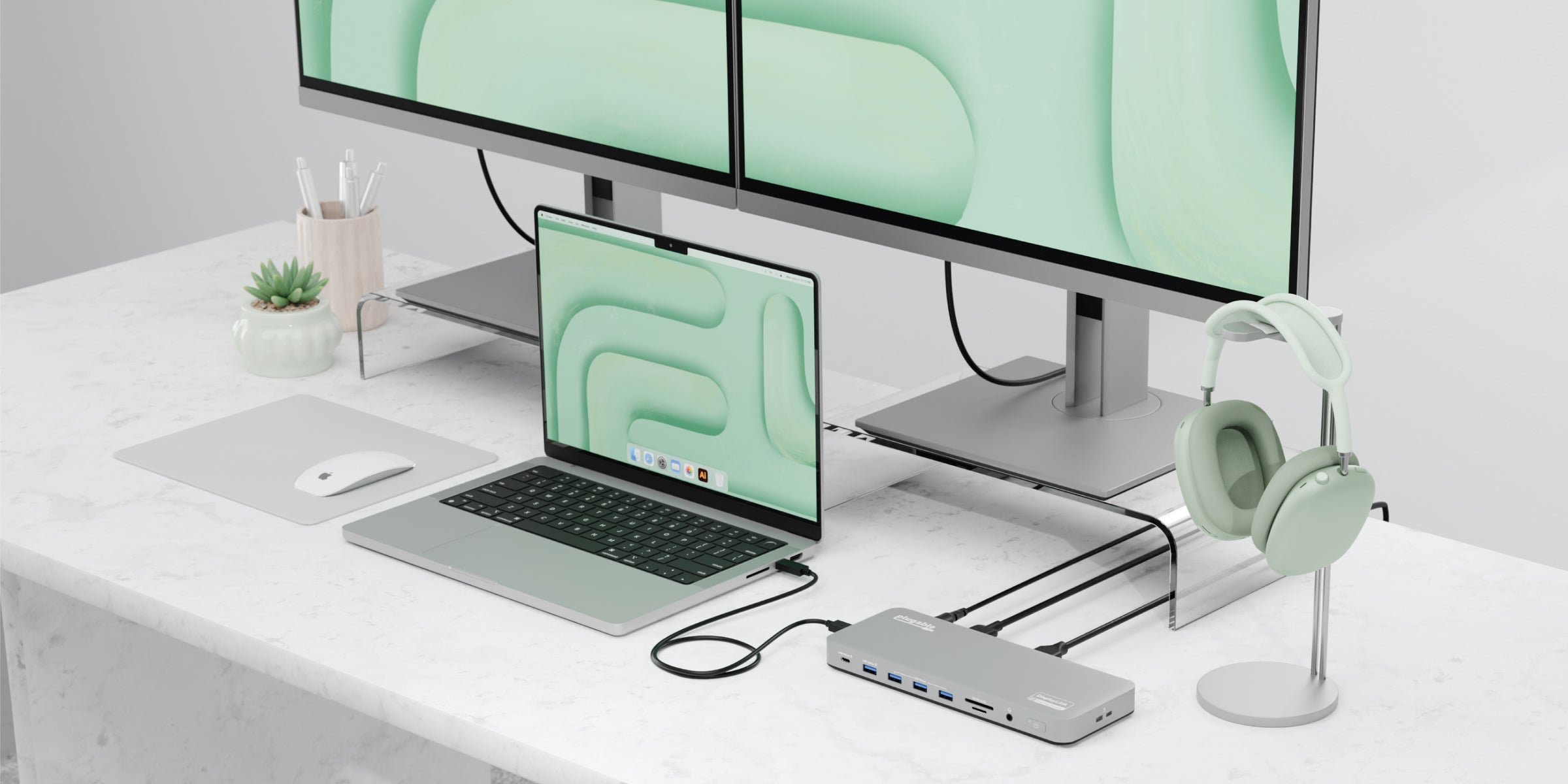
DisplayLink uses a combination of a driver and a custom chipset in the dock to convert video data into USB packets.
- The Freedom: This is the only way to get dual or triple displays on the new MacBook Neo or the base M1/M2/M3 models.
- The Nuance: It effectively "cheats" the system's hardware limits, making it the perfect universal solution for mixed-office environments.
Recommended Plugable Docks:
- UD-6950PDH: Ideal for dual 4K 60Hz. It is the go-to for the MacBook Neo and base M-series users.
- UD-ULTC4K: The "Triple Threat." Use this to turn a $599 MacBook Neo into a three-monitor workstation.
Thunderbolt: Native Speed & The M5 Leap
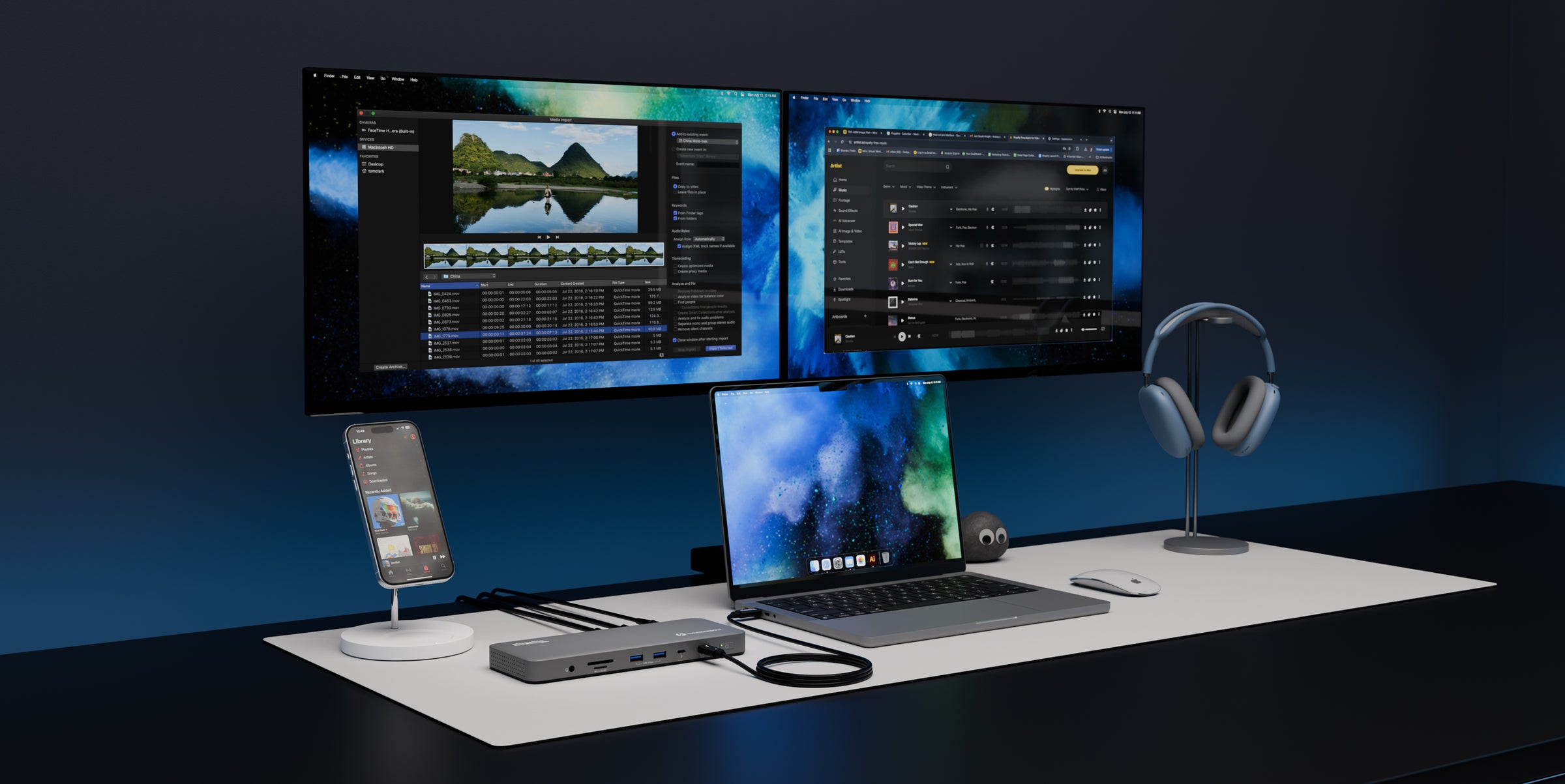
Thunderbolt docks tap directly into the Mac’s GPU using DisplayPort Alternate Mode. The new M5 Pro and M5 Max models (released March 2026) have introduced Thunderbolt 5, though they remain backward compatible with all Thunderbolt 4 gear.
- The Power: Thunderbolt offers the lowest latency and highest color fidelity. On an M5 Pro, you get two native 6K 60Hz streams with zero lag.
- The Constraint: On a MacBook Neo or base M1/M2, even a high-end Thunderbolt dock will only drive one screen natively because the chip lacks the necessary display engines.
Recommended Plugable Docks:
MST: The "Mirroring" Trap
Multi-Stream Transport (MST) is a DisplayPort technology used by many laptop docks. However, macOS still does not support MST for extended displays.
- The Result: If you plug an MST dock into a Mac (even the new M5 Max), both monitors will show the same image (mirroring).
Technically, an MST docking station will work with a Mac, but only if you are connecting a single external display. For best results, make your docking station selection based on the DisplayLink and Thunderbolt information above.
Summary: The Educated Buying Decision
- MacBook Neo / Base M1 / Base M2: You must use DisplayLink (e.g., UD-6950PDH) for dual screens.
- Base M4 / M5: Use Thunderbolt (e.g., TBT4-UDZ) for native dual-screen performance without closing your lid.
- M5 Pro / Max: Always choose Thunderbolt to take full advantage of the new high-performance display engines.
Still Need Help?
Don't let compatibility hold you back. If you have questions about your specific Mac configuration:
- Use our Dock Finder Tool
- Email us: support@plugable.com
- Chat with Watts, our AI assistant, for instant answers.
Frequently Asked Questions
Q: Does the MacBook Neo support dual external monitors?
A: Natively, the MacBook Neo (A18 Pro chip) supports only one external display up to 4K at 60Hz. To use two or more monitors, you must use a DisplayLink docking station like the Plugable UD-6950PDH, which uses software to bypass the A-series hardware limitation.
Q: How many monitors can I connect to an M5 Pro or M5 Max MacBook Pro?
A: The M5 Pro supports up to three external displays, while the M5 Max supports up to four external displays natively. Because these chips feature the new Fusion Architecture, they can drive these high-resolution displays (up to 6K) via a single Thunderbolt 5 or Thunderbolt 4 cable using docks like the Plugable TBT4-UDZ.
Q: Can the base M5 MacBook Air run two monitors with the lid open?
A: Yes. Unlike the M3, which required the lid to be closed (Clamshell Mode), the base M5 chip (found in the 2026 MacBook Air and 14" MacBook Pro) natively supports two external displays while the laptop's built-in screen remains active.
Q: Why do my dual monitors only show the same image on my Mac?
A: This is caused by MST (Multi-Stream Transport). macOS does not support MST for extending desktops; it will only "mirror" the display. To get two independent, extended screens on a Mac from a single cable, you must use a Thunderbolt or DisplayLink docking station.
View Other Articles in Category
Apple Silicon, DisplayLink, Docking Stations, Multi-Monitor, Thunderbolt
Related Articles
- How to Add More Monitors to Your Existing Dock
- The Evolution of Thunderbolt Docking Stations: From Niche to Infrastructure
- The 2026 Mac Expansion: Navigating the M5 Series and the New MacBook Neo
- Enterprise Guide: How Many External Monitors Can a Laptop Really Support?
- Mix and Match: What To Expect When Mixing Thunderbolt 5 and Thunderbolt 4 Hosts and Devices



Loading Comments